
Help guide
Last updated July 13, 2026
Toad keeps an eye on the streets you park on. It learns the street-sweeping schedule for each block you watch, spots moving-truck and construction permits, and reminds you to move your car before the city does it for you.
This page walks through the whole app. If you want the short version, the app can show you around itself: open Settings → Help → Replay app tour.

The app in 30 seconds
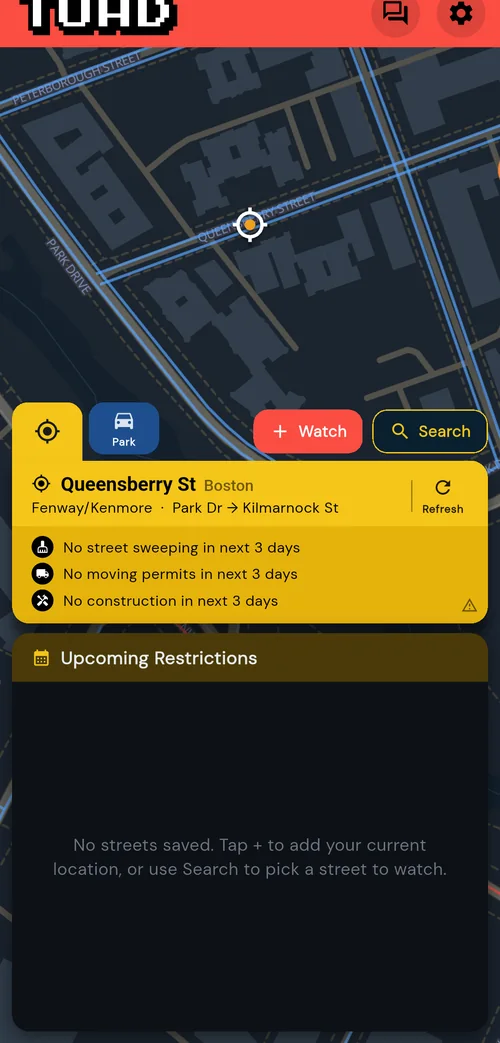
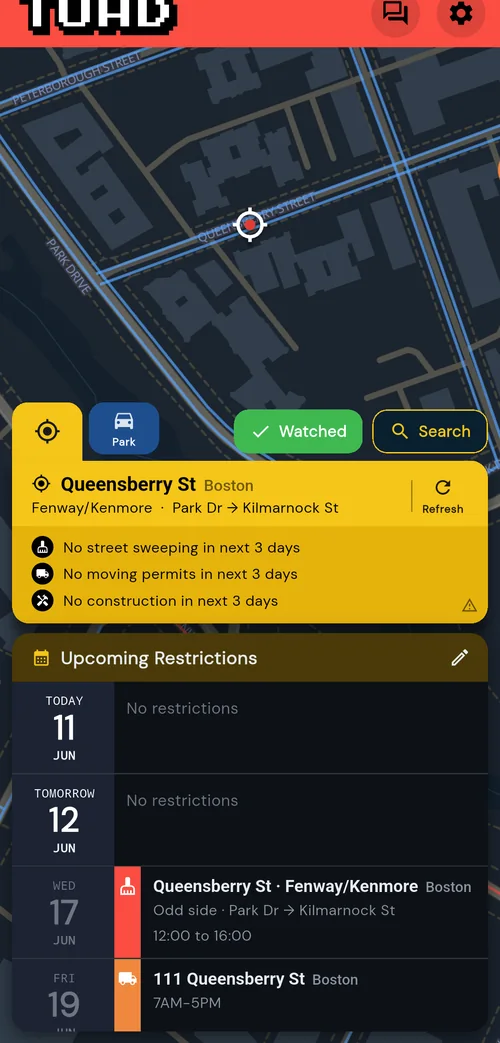
- See where you stand. As you drive around looking for a parking spot, check the yellow live location card for any restrictions coming up.
- Watch the block. One tap on +Watch adds your current location to your watch list.
- Save your parking location. Tap the Park button to remember where you parked your car. Toad will watch that spot for you as well (and help you find your way back to it).
- Get warned in time. Toad reminds you the day before and the morning of when there are sweeping or restrictions, so you can move the car first.
The home screen
The home screen is a live map centered on your current location. The yellow location card at the bottom names the block Toad thinks you are standing on, with its neighborhood and cross-streets, and sums up the next few days: street sweeping, moving permits, and construction work.
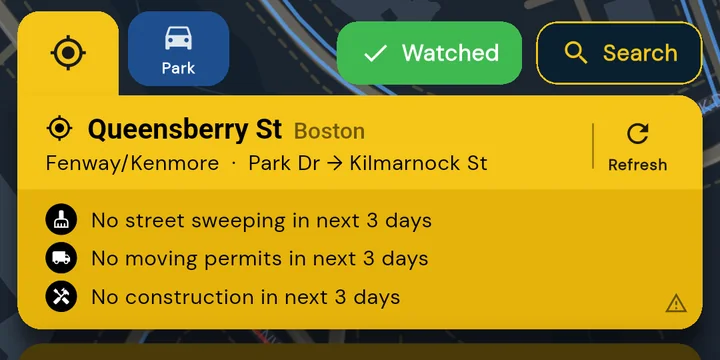
The location card for a watched block: the status rows cover sweeping, moving permits, and construction.
- +Watch puts the block on your watch list; it flips to a green ✓ Watched check once it is on there.
- Search looks up any street by name (more under "Watching streets" below).
- The blue Park tab pins where you parked (more under "Park and find your car" below).
- Refresh re-checks where you are. GPS drifts indoors, so if the card names the wrong block, step toward the street and refresh.
Reading the map
Toad draws a thin line along each side of every street it has sweeping data for, because the two sides of a block usually sweep on different days. Streets with only one sweeping side will have only one line on the map.
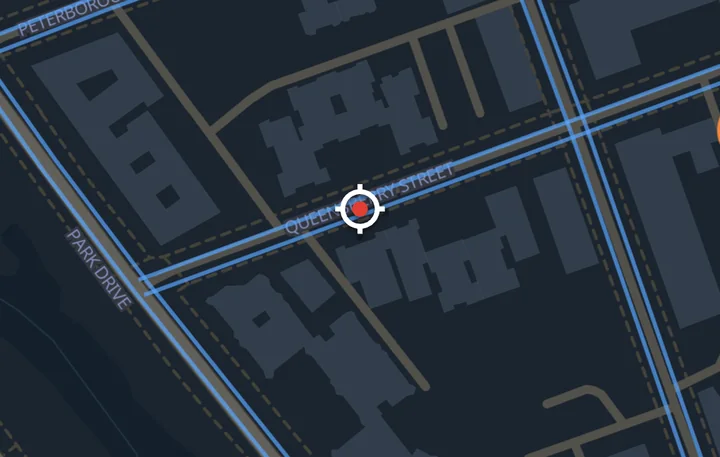
Queensberry St in the Fenway: every side is blue, so nothing fires in the next two days.
- Red line · that side of the street sweeps today or tomorrow. A red chip on the line counts down to it. Do not park there without checking the times.
- Blue line · Toad knows the schedule for that side and nothing fires in the next two days.
- Grey line · mostly means this block is not relevant for parking (highway ramps, medians, service roads).
- Orange pin · an active or upcoming permit: a moving truck or construction work.
Watching streets
Watching a street is how you tell Toad to keep an eye on it for you. You can watch the block you are currently standing on from the yellow card, or search for any street by name.
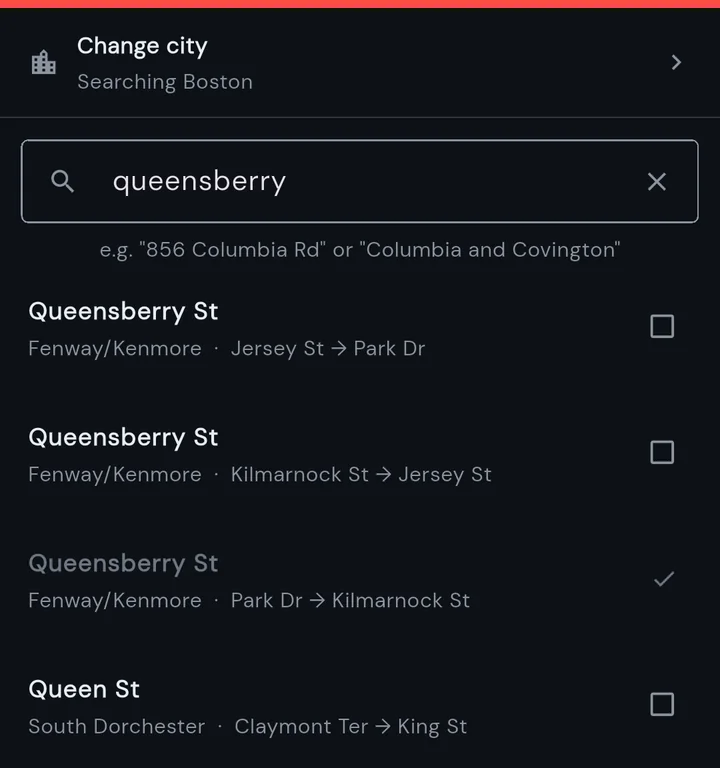
Search results show the cross-streets and neighborhood, so you can tell blocks of the same street apart. Blocks you already watch show a check.
Each result is one block, listed with its neighborhood and cross-streets ("Park Dr → Kilmarnock St"). You can watch up to 5 streets at one time.
Everything you watch appears in the Upcoming Restrictions list under the map, ordered by date:
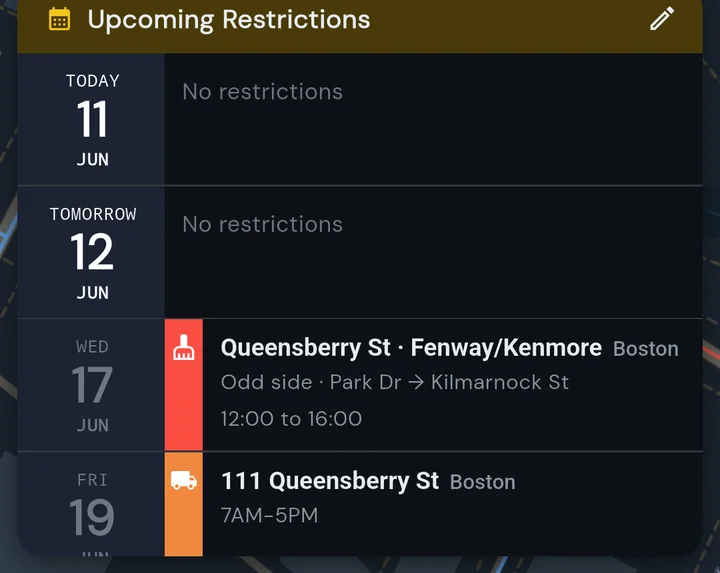
Each row shows which side sweeps, between which cross-streets, and when. Quiet days show "No restrictions", and moving/construction permits on watched blocks appear in the same list.
- Tap the pencil icon in the list header to open Manage watch list, where you can mute alerts for a street, remove streets from your list, or mute a specific permit.
- Press and hold any row to report a problem with it (wrong schedule, permit that is not really there). Your report opens a message thread with the Toad team.
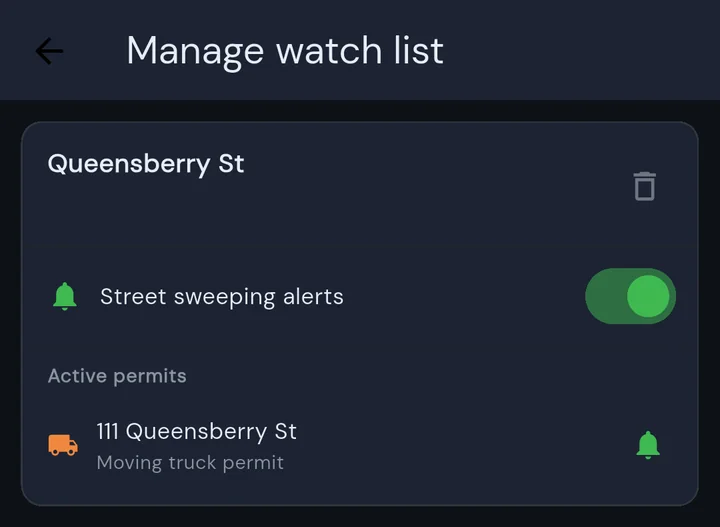
Manage watch list: remove a street, mute its sweeping alerts, or mute a single permit.
Moving trucks and construction
Cities issue permits that reserve curb space: moving trucks, dumpsters, cranes, utility work. Toad pulls these from the city feeds daily and pins them to the affected block.
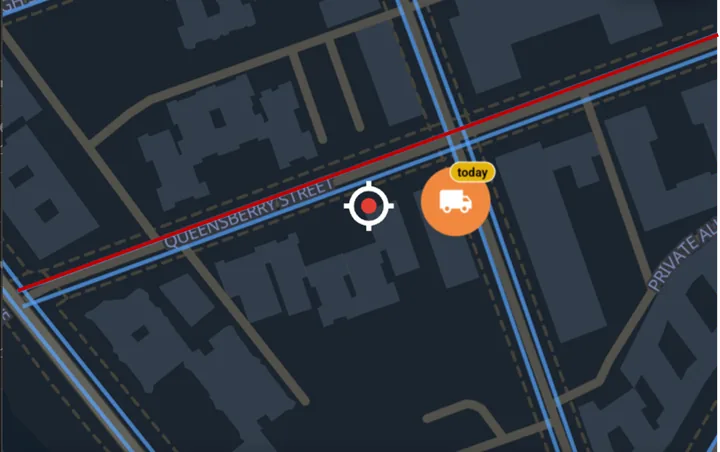
A moving-truck permit pin with its "today" chip. Construction permits get the same treatment with a tools icon.
If a permit lands on a street you watch, it shows up in your Upcoming list and in your reminders. Permit alerts can be toggled per type (moving / construction) in Settings.
Snow emergencies and events
Some restrictions are called by the city on short notice and cover whole areas rather than single blocks. Toad watches for two kinds of those: a snow emergency (a citywide parking ban on snow-emergency routes, which stays in effect until the city lifts it) and an event (like open streets, a road race, or a parade that restricts parking near it for a set window). When one is active on a block you are on or watching, Toad flags it as soon as it's announced.
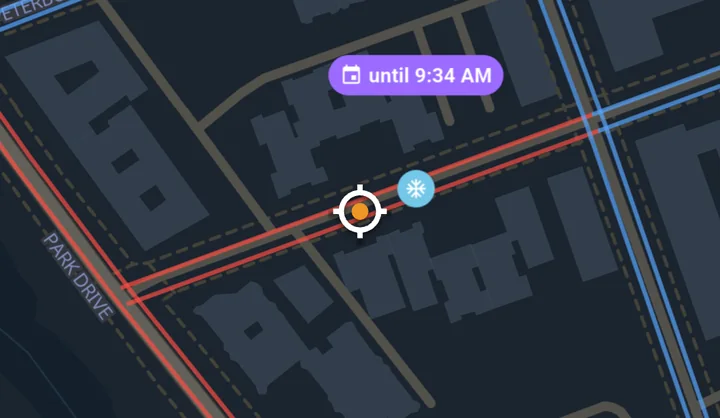
On the map, the block turns red and two pills appear: a snowflake for a snow emergency, and a purple countdown ("until 9:34 AM") for a timed event.
- ❄Snowflake pill · a snow emergency is in effect. It stays until the city lifts it, so there is no countdown.
- 📅Purple event pill · a timed event. It counts down to the start, then shows "until" its end time.
The same alerts show up as their own rows in your location card and in the Upcoming list, color-coded so they stand out from sweeping and permits:
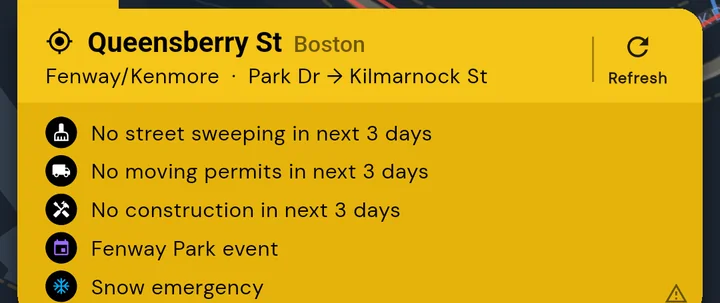
The location card lists the active alerts under the usual sweeping and permit rows.
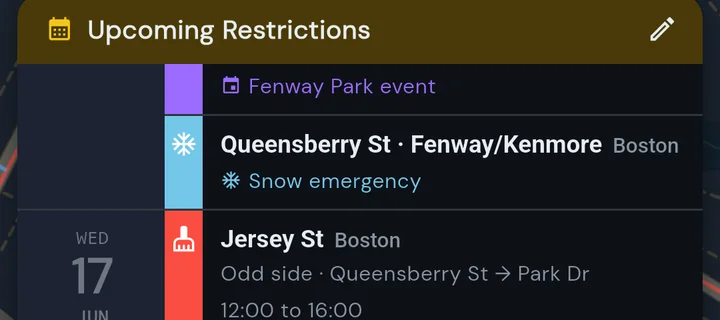
In the Upcoming list, a snow emergency and an event on a watched block sit above the day's sweeping rows.
If the alert lands on a block you watch, you also get a notification when the city declares it and another when it is lifted, so you are not relying on the news. Pick which city's snow and event alerts you receive under Settings → Alert city.
Park and find your car
When you park, open the blue Park tab next to the location card and save the spot. Toad pins it and starts watching that block automatically, so the reminders cover the place your car actually is, even if you end up parked several blocks away from home (shout out to everyone struggling with this in Southie!).
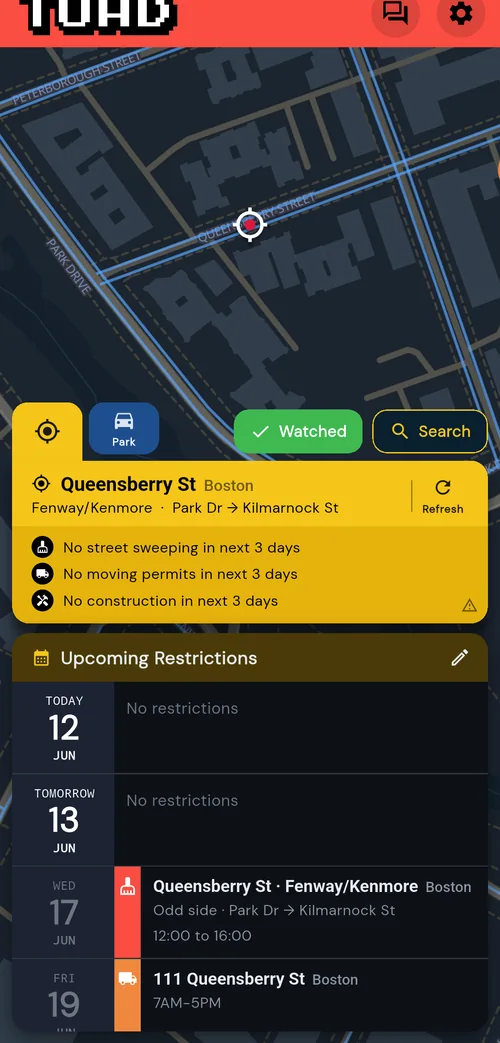
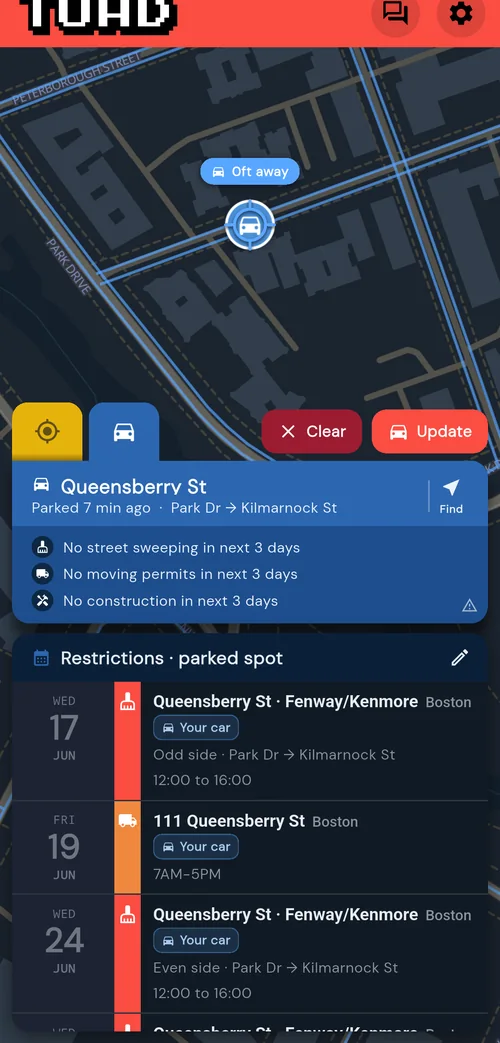
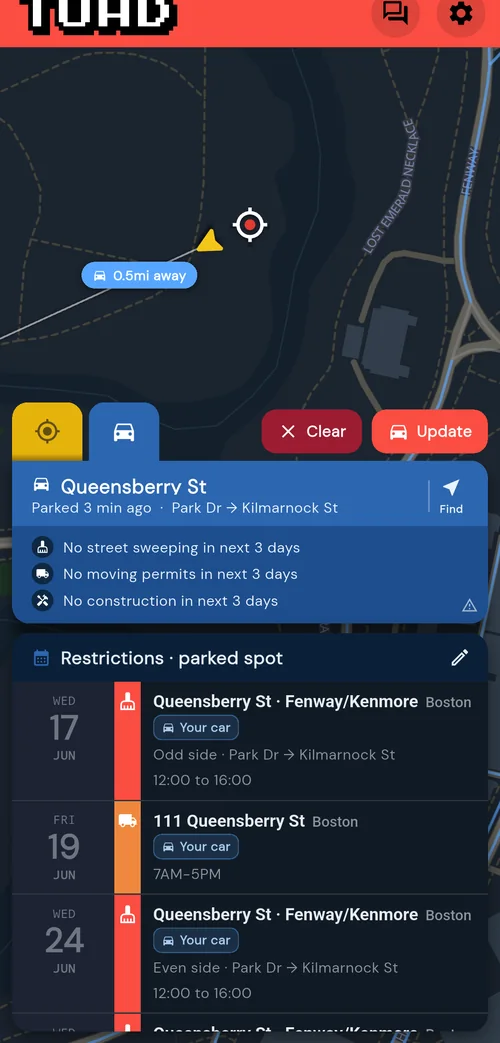
- Tap Park when you leave the car. The blue tab sits right next to the location card.
- Toad pins the spot. The block is watched automatically, and your list now flags the rows where your car is.
- Tap Find on the way back. An arrow and a straight line point from you to the car. The distance is as the crow flies, not the walking route, so expect the walk to run a little longer. Refresh as you walk back to update your distance and pointer.
The saved spot is stored only on your device. Clear forgets it; Update moves it to where you are standing now.
Notifications
Toad sends two kinds of daily reminders for the streets you watch:
- The day before · a digest of everything firing tomorrow. You pick the time in Settings: 8 AM, 5 PM, or 9 PM the day before.
- The morning of · a same-day reminder at 8 AM for anything happening that day.
When a sweeping day lands on a city holiday, Toad swaps the reminder for a "No street sweeping" note instead, and the watch list shows the holiday exception.
Notifications are scheduled on your phone by the operating system. If they are not arriving, the usual culprit is a battery saver or a missing permission; the Support page has a step-by-step checklist.
Replay the in-app tour
The first time you open Toad, it walks you through the home screen: the yellow card, the Watch and Search buttons, the Park button, and Messages. You can rewatch that walkthrough anytime:
Settings → Help → Replay app tour.
That also replays the one-time tips, like the pointer that appears after you save your first parking spot.

Cities
Toad covers Boston, Cambridge, Somerville, Chelsea, Malden, and Everett. Street-sweeping reminders are available in all six; moving and construction permit alerts are available for Boston and Cambridge. Pick your city when you first sign in, and switch it later from Settings if you need to.
Keep in mind: parking data is messy. Schedules change, cities post permit data late (sometimes never), and signs get replaced. Toad is an early-warning system, but relies on city data which may be inaccurate. Always check the sign on the block before you walk away, they are the definite source of truth (and if you want to help other users, report anything that looks off so we can correct it.)
Need more help?
The Support page answers the most common questions. From inside the app you can message us directly (Settings → Messages, or the speech-bubble icon at the top of the home screen), or email ohooligan@heytoad.app.